How to Download Premium Voices on iPhone and iPad
Quick Navigation
Premium voices offer higher quality and more natural-sounding speech for your audiobooks. Follow these steps to download premium voices and use them in BookNPC.
Before you start:
- None of this applies to studio cloud audio. Those voices are rendered on our servers, so they play on any device, and books from the Discover tab already come with theirs.
- This guide is for iPhone and iPad. On an Android phone, follow this one instead: How to Set Up Voices on Android
Step 1: Access Voice Settings
Open your device's  Settings app and navigate to Accessibility > Read & Speak > Voices.
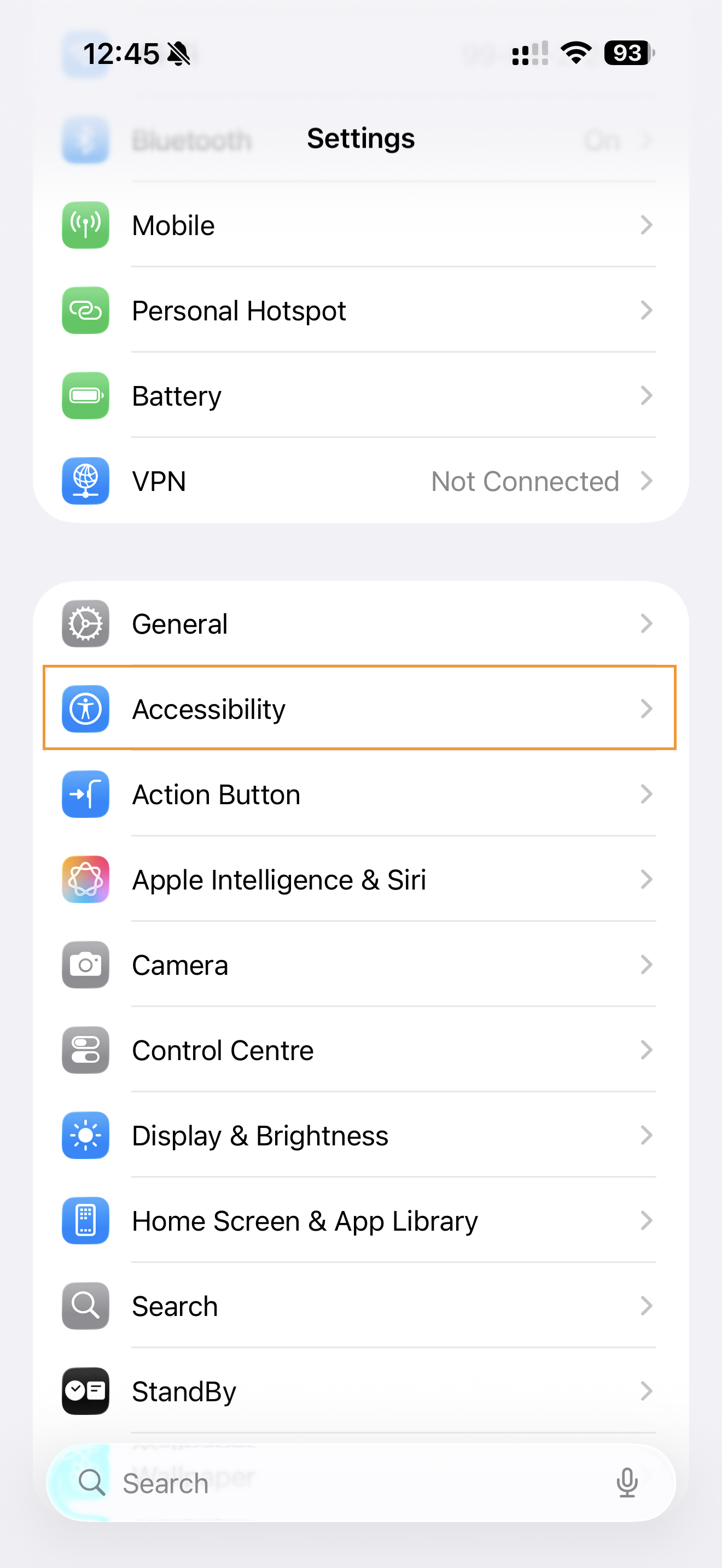
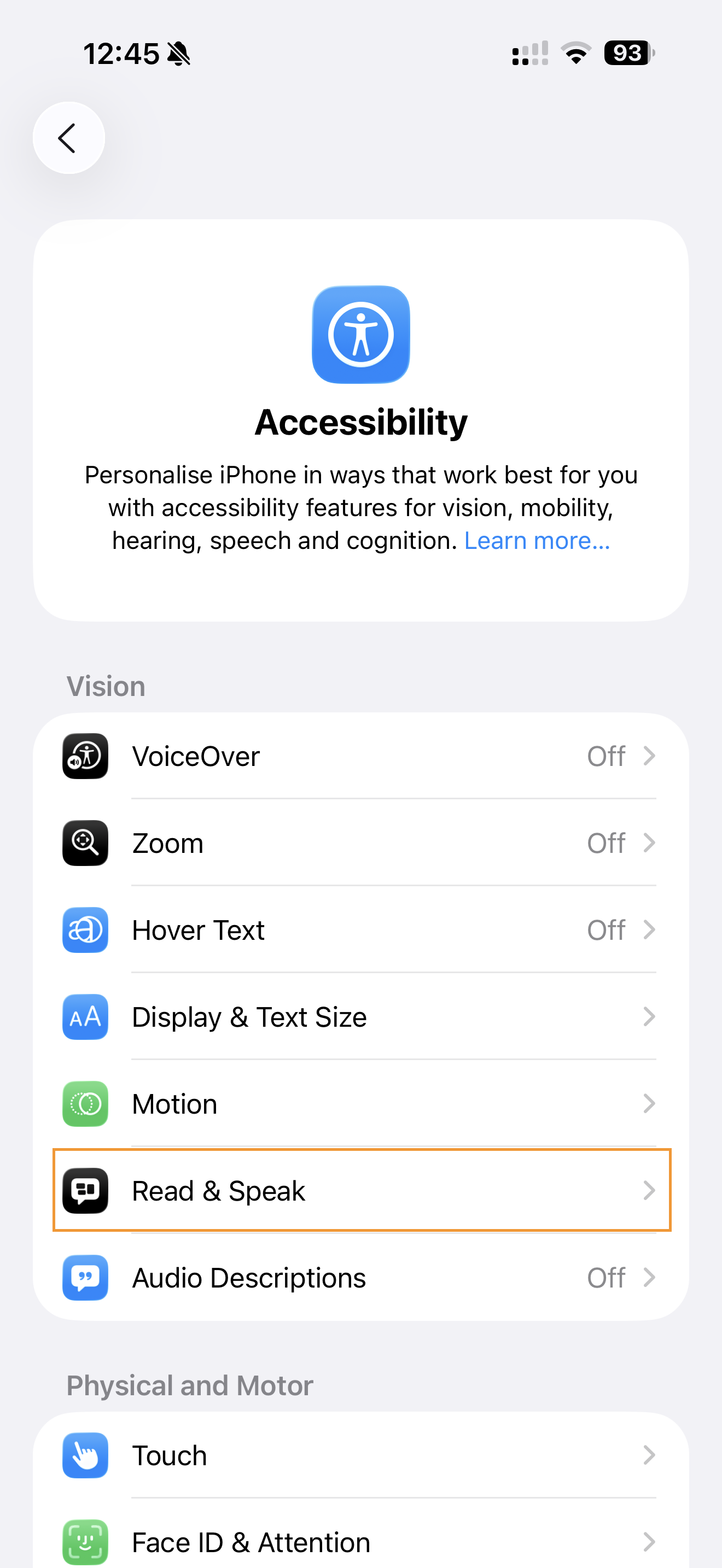
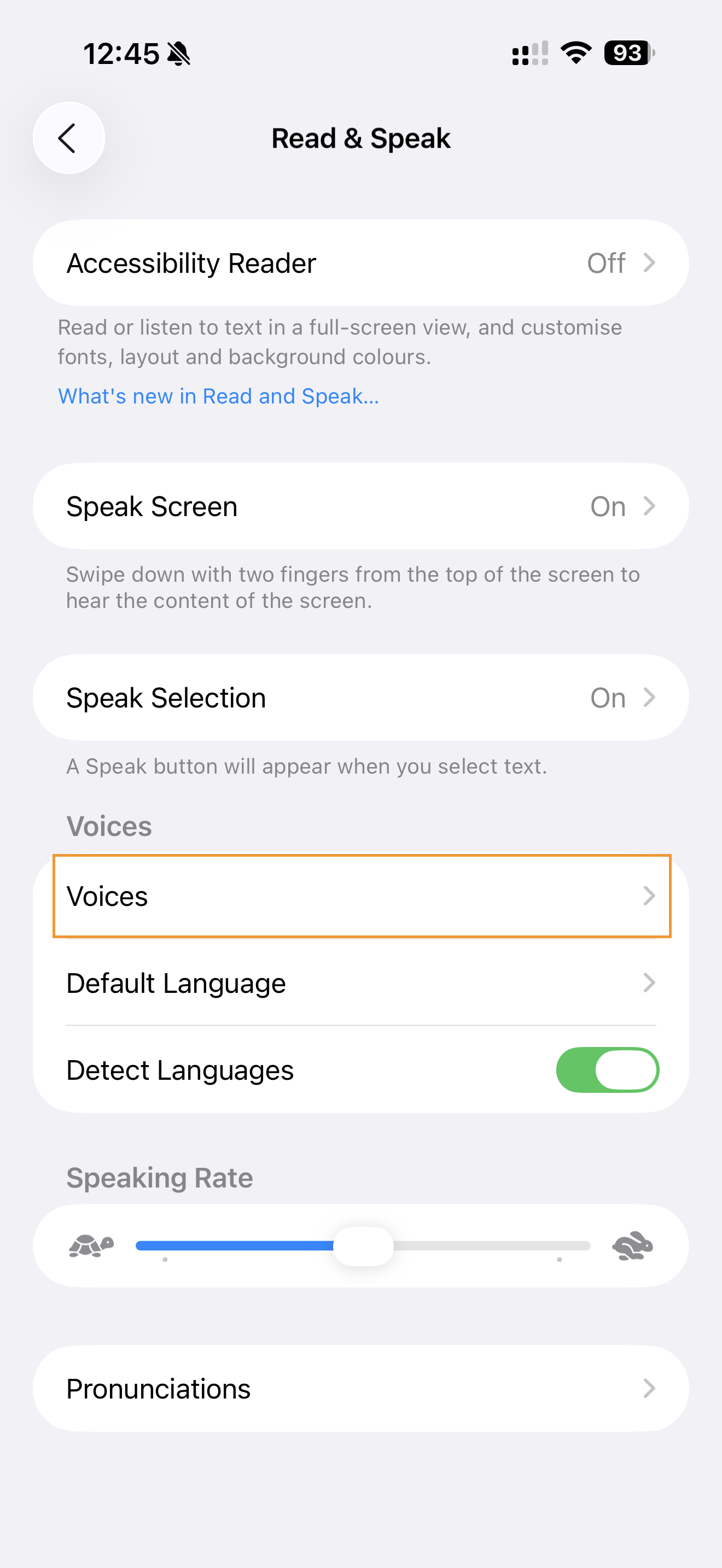
Step 2: Choose Your Language
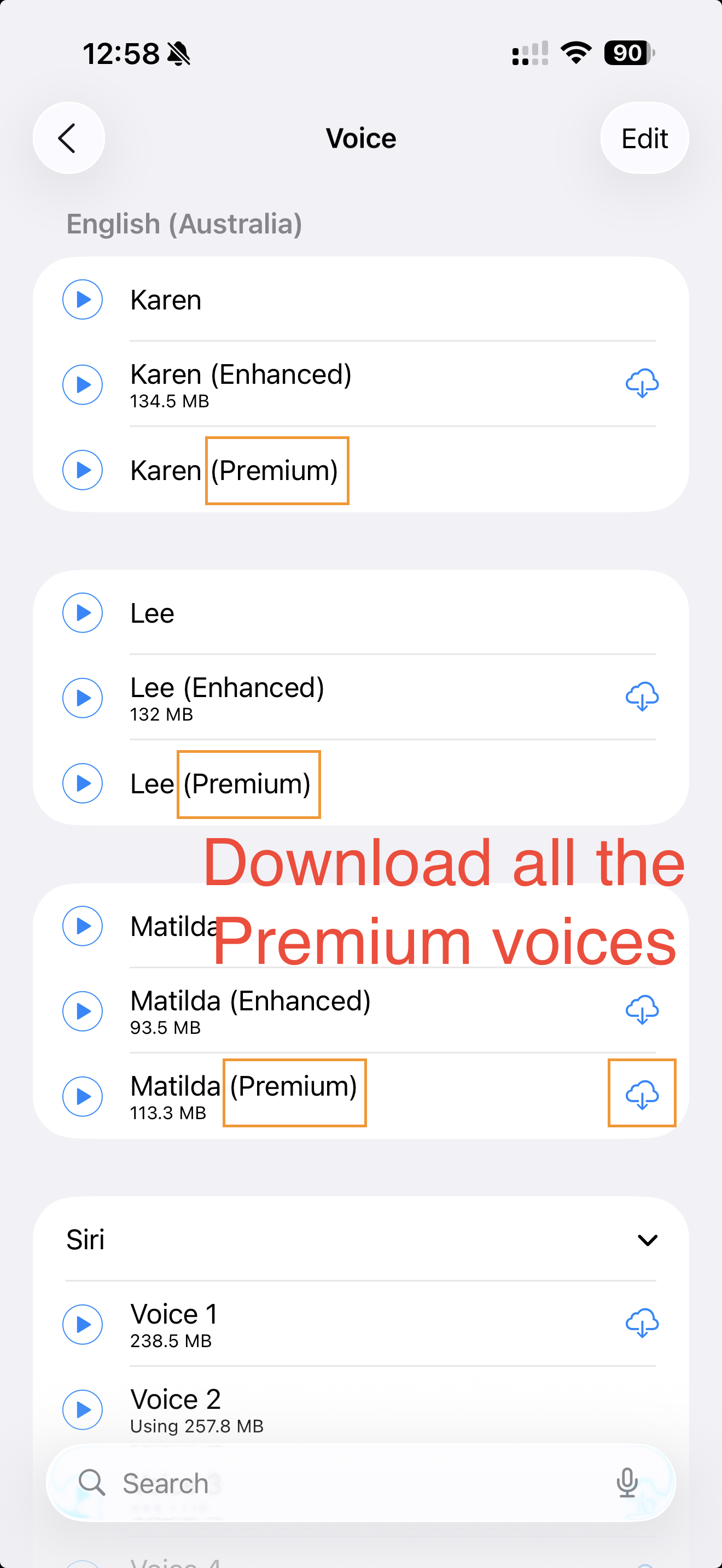
Select your preferred language from the list. Each language may have multiple voice options available.
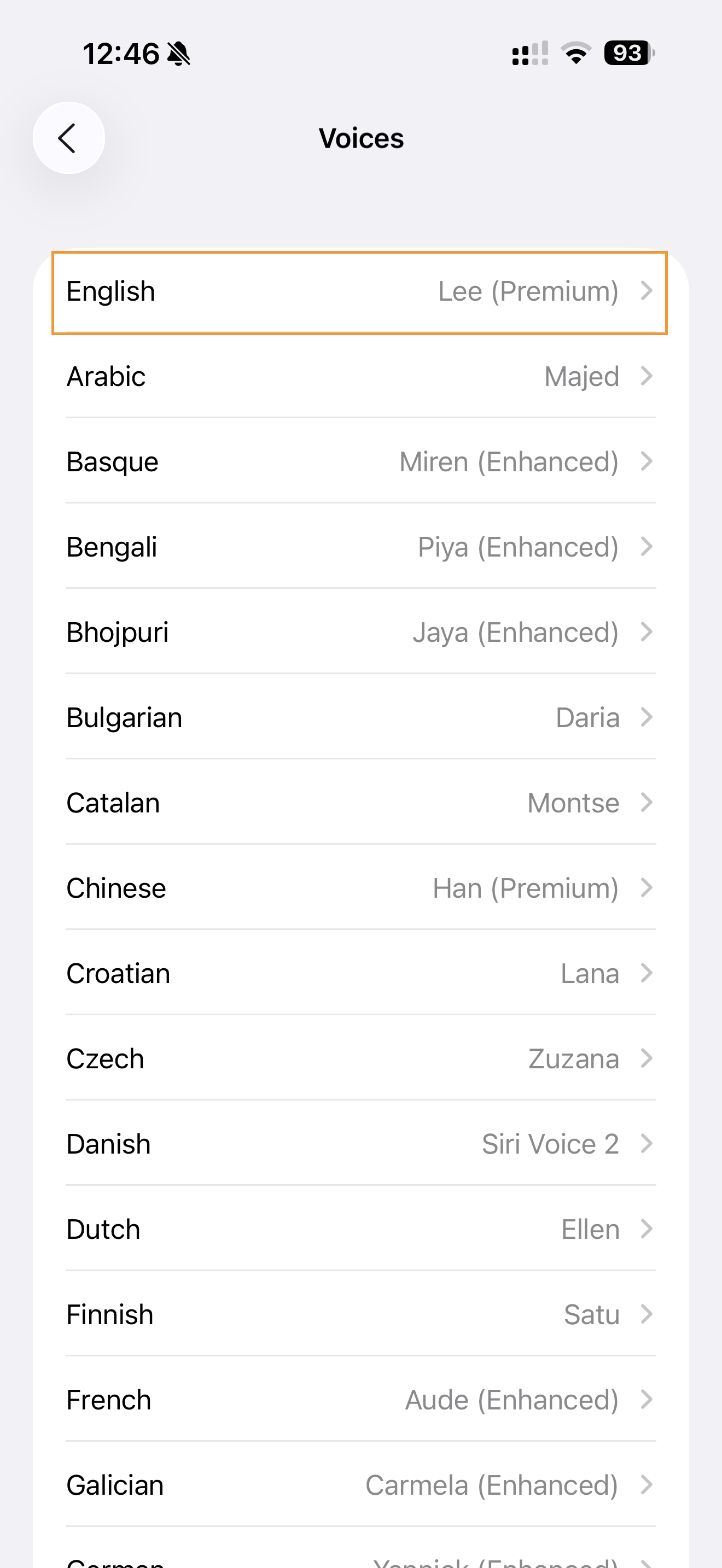
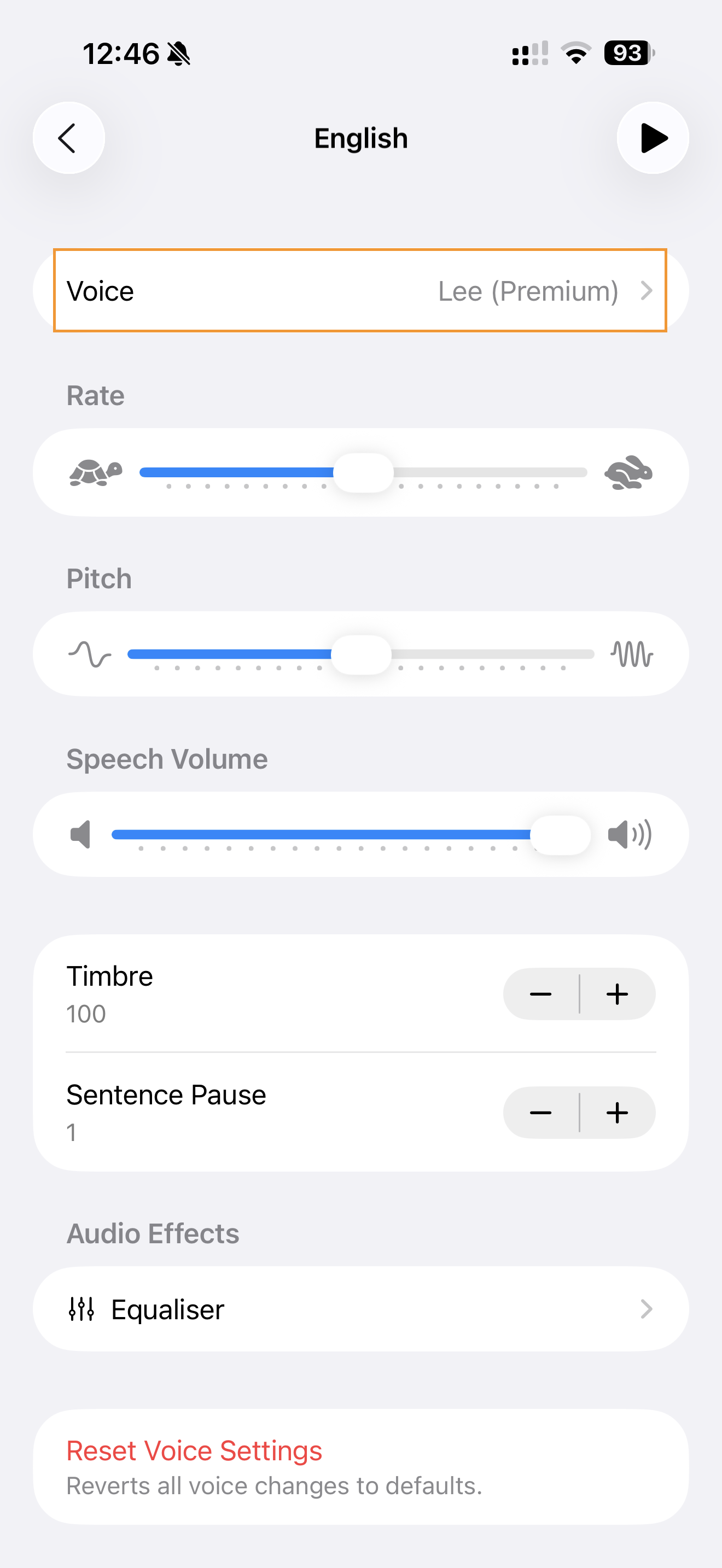
Step 3: Select and Download Premium Voices
Look for voices marked with "(Premium)" - these are the high-quality voices. Tap on a voice to preview it, then tap the download icon (cloud with arrow) to download.
Important Notes:
- Premium voices require more storage space (100-200 MB each)
- Download using Wi-Fi to avoid mobile data charges
- Premium voices work offline once downloaded