How to Set Up Voices on Android
Quick Navigation
On Android, BookNPC reads with the voices your phone provides, and it reads them through Google's speech engine. If the voice list in BookNPC is empty, or a book won't make any sound, it is almost always one of three things: Google Text-to-Speech isn't installed, your phone is set to a different speech engine, or no voice data has been downloaded. Work through the steps below in order.
Before you start:
- Quick link: Google Text-to-Speech on the Play Store. Installing it is only half the job on most Samsung phones, so carry on through the steps below afterwards.
- None of this applies to studio cloud audio. Those voices are rendered on our servers, so they play on any phone, and books from the Discover tab already come with theirs.
- This guide is for Android. On an iPhone or iPad, follow this one instead: How to Download Premium Voices on iPhone and iPad
Step 1: Install Google Text-to-Speech
Most Android phones already have it. If yours doesn't, install Speech Recognition and Synthesis from Google from the Play Store. BookNPC also shows a link to it in the audio settings when it can't find any voices to use.
Step 2: Open your phone's text-to-speech settings
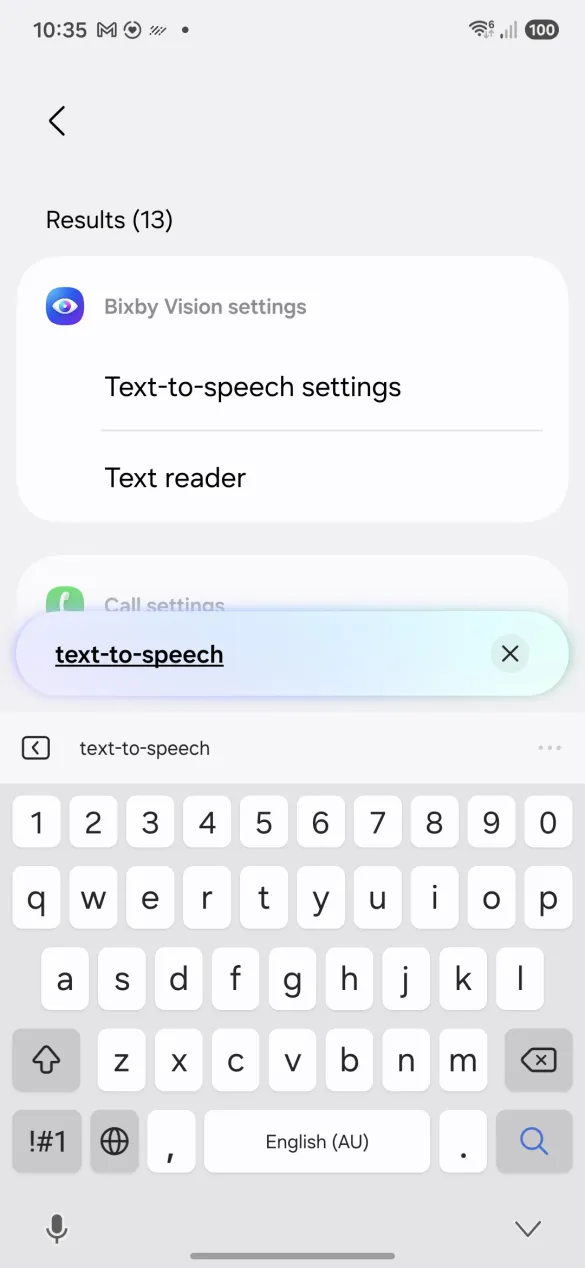
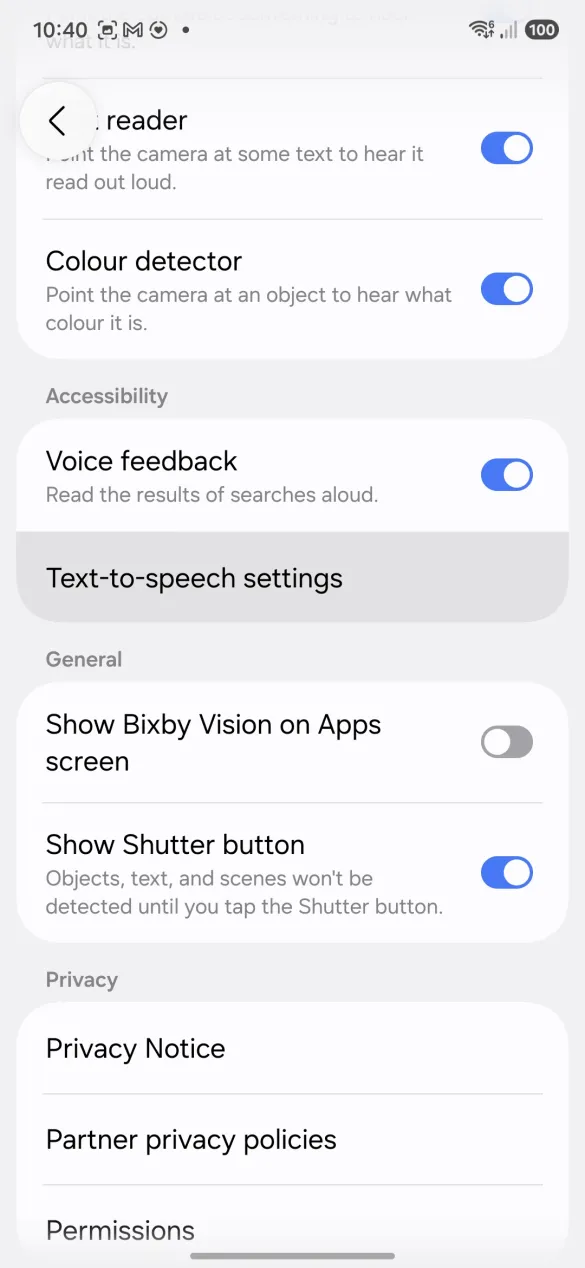
Open the Settings app, type text-to-speech into the search bar, and pick Text-to-speech settings. The search often drops you into another screen with that row highlighted (on this Samsung it lands inside Bixby Vision settings). Tap the highlighted row to carry on. Every brand hides these settings somewhere different, so searching is the quickest way in.
Step 3: Set the preferred engine to Google
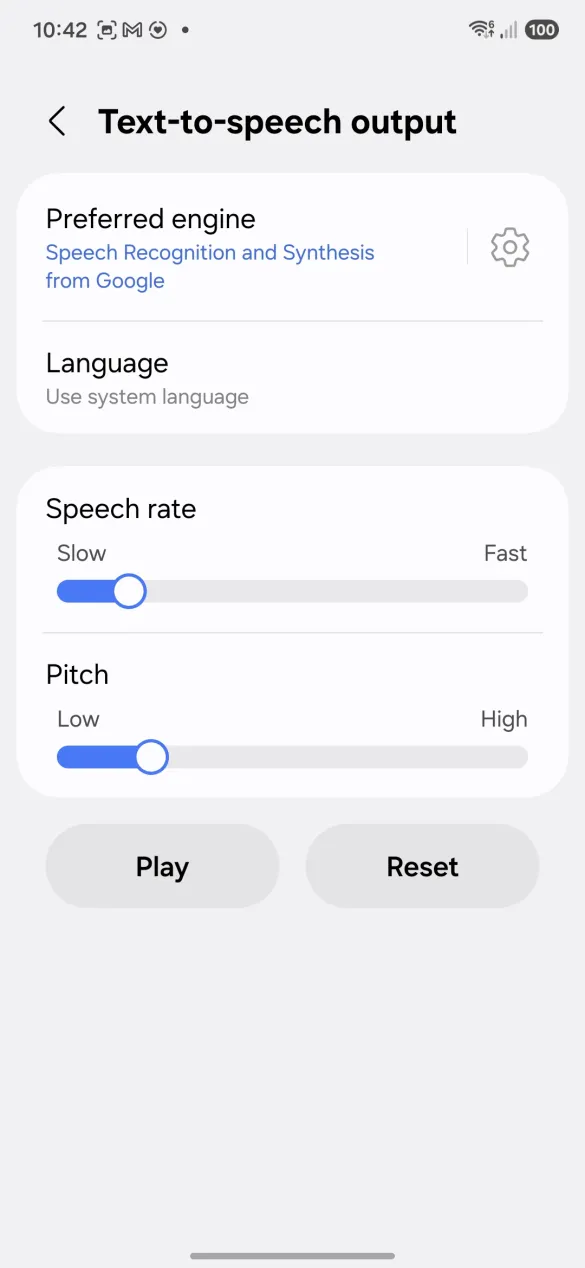
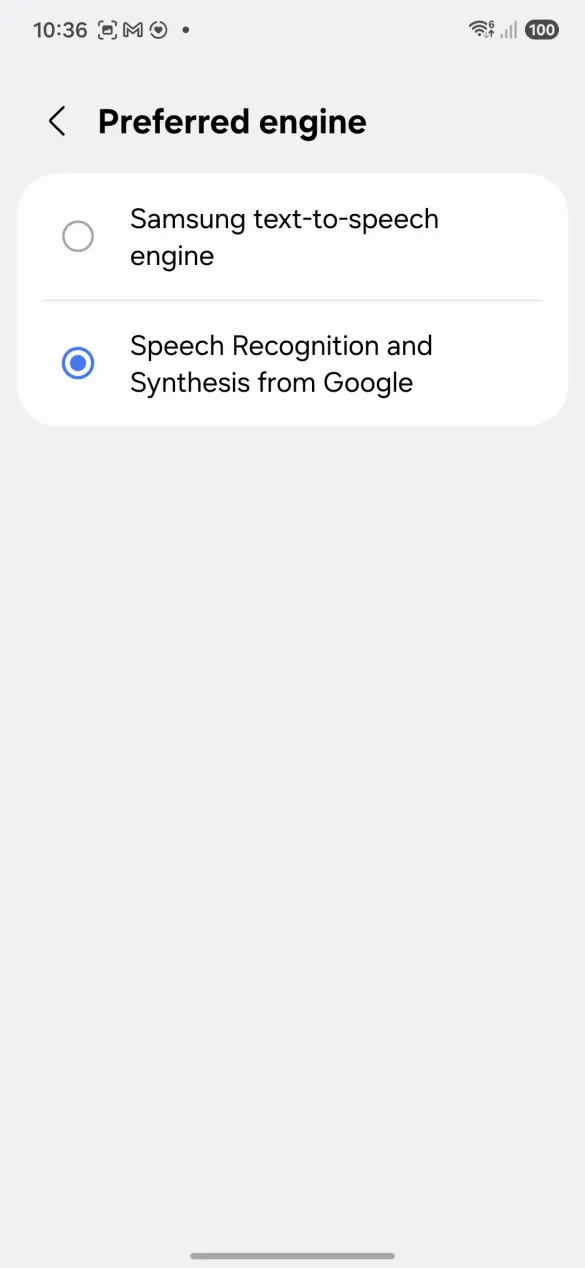
On the Text-to-speech output screen, tap Preferred engine and choose Speech Recognition and Synthesis from Google. This is the step most people miss. Samsung phones come set to Samsung's own engine, and BookNPC doesn't list its voices, so the voice picker stays empty until you switch.
Step 4: Install the voice data
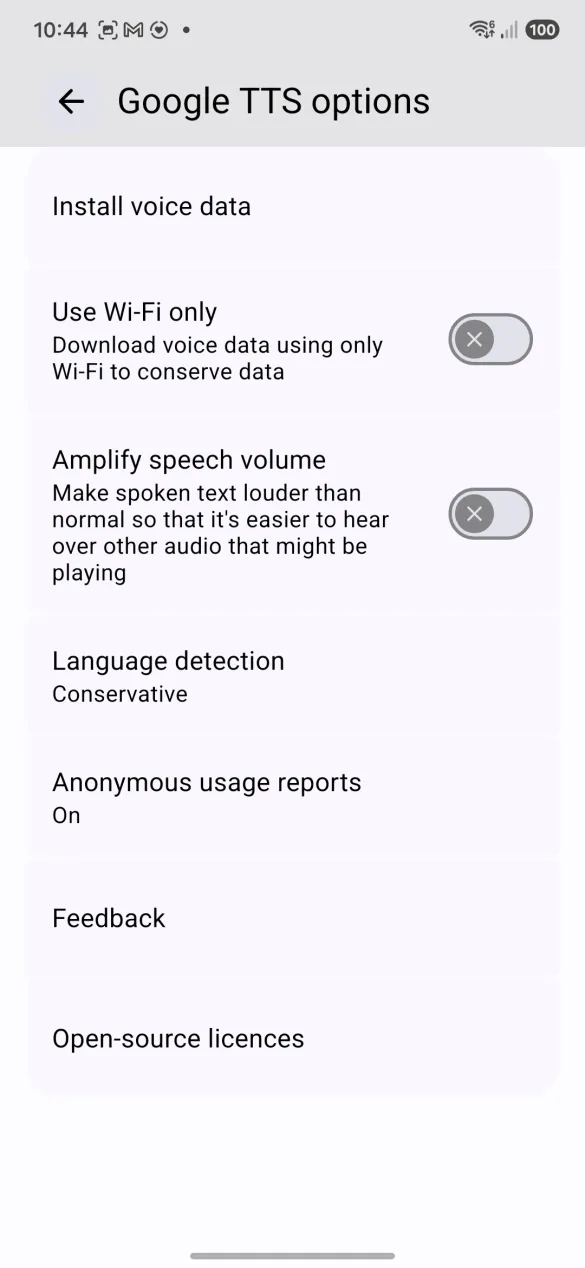
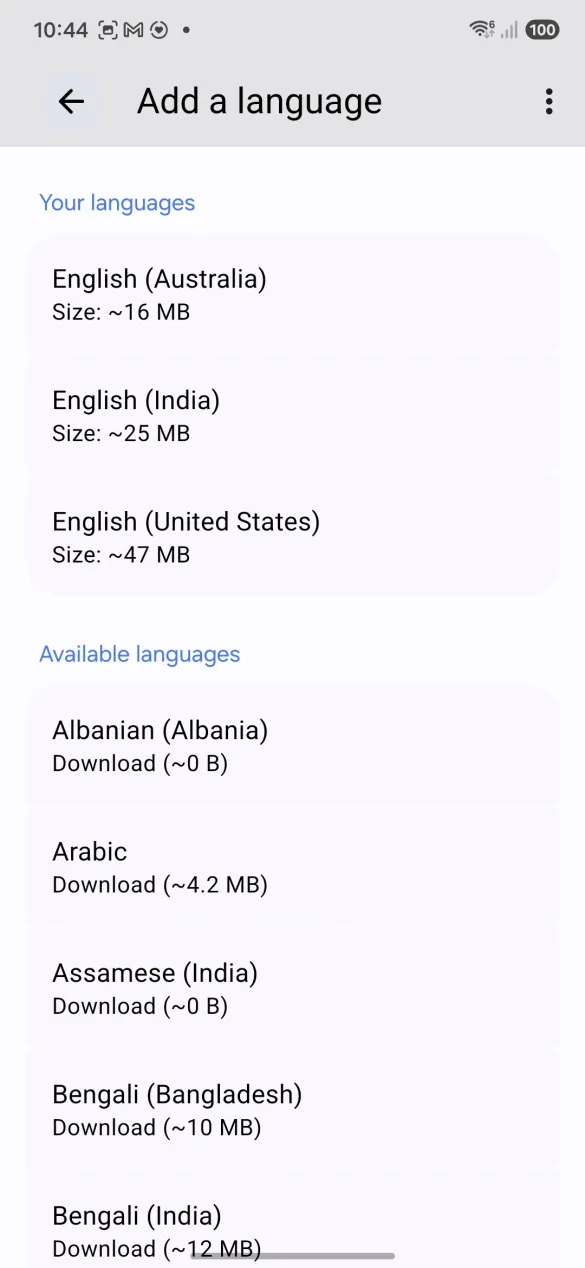
Go back to Preferred engine and tap the gear icon on the right of the row, then Install voice data. Languages you already have appear under Your languages; the rest show a download size next to them. Tap the language your books are in and let it download.
Step 5: Restart BookNPC and pick a voice
Close BookNPC and open it again so it picks up the new engine. Open a book, tap the sliders icon in the player bar to open Audio Settings, then pick a voice under Device Voices. The list should now show voices for your language.
Important Notes:
- Voice data runs from a few megabytes to around 50 MB per language, so download it on Wi-Fi if you are watching your data.
- In BookNPC's voice list, the better Google voices are marked Enhanced (BookNPC shows that word in English whatever language you read in). Pick one of those if your language has them.
- Once downloaded, device voices work offline and cost nothing to use.
- If your phone is recent, the other tab in Audio Settings has experimental voices that don't need Google Text-to-Speech at all. They take longer to load and play a little slower, but they sound better.
- Still no voices after all five steps? Email [email protected] with your phone model and we'll take a look.