How to Add Books
Quick Navigation
BookNPC supports multiple eBook formats including EPUB, MOBI, AZW, FB2, and TXT. There are three ways to add books to your library:
1. From the Discover Tab
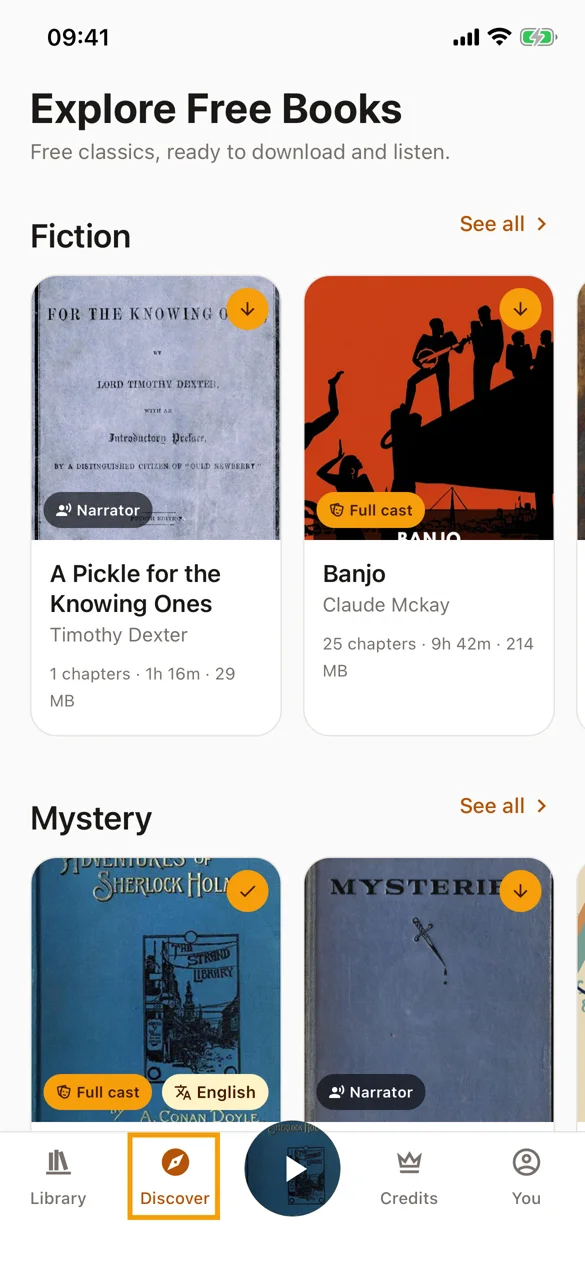
The Discover tab is a built-in catalog of free classics that are ready to play. Many are already produced as full-cast audiobooks, so there is nothing to import: pick a book and it downloads straight into your library.
Step 1: Open the Discover Tab
Tap Discover at the bottom of the screen to browse the free catalog. Books marked Full cast come with a different voice for every character; Narrator books use a single narration voice.
Step 2: Browse or Search
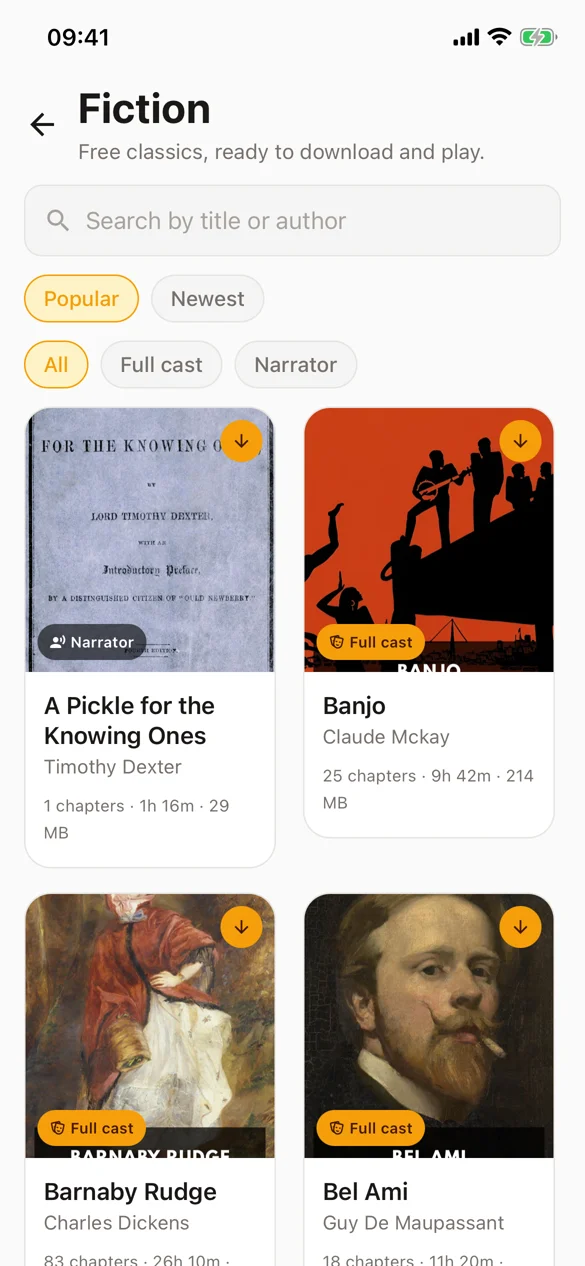
Open a category with See all to search by title or author, and filter the list by Full cast or Narrator. Each card shows the book's length and download size.
Step 3: Download the Book
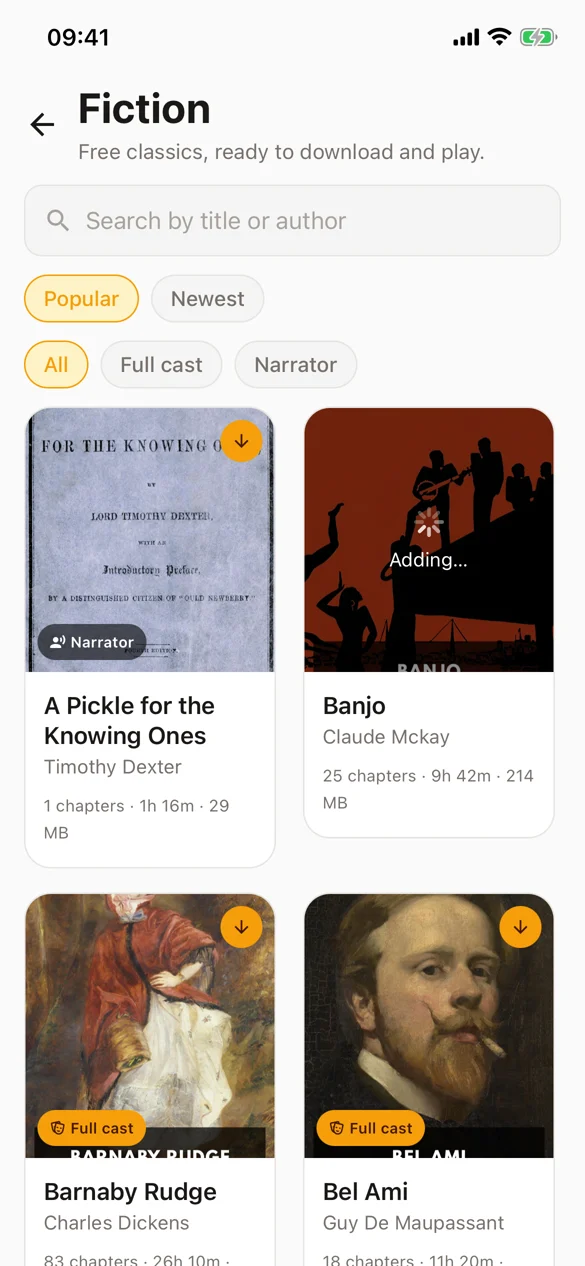
Tap the download button on a cover. The book and its audio are added to your library; larger books take a little longer.
Step 4: Start Listening
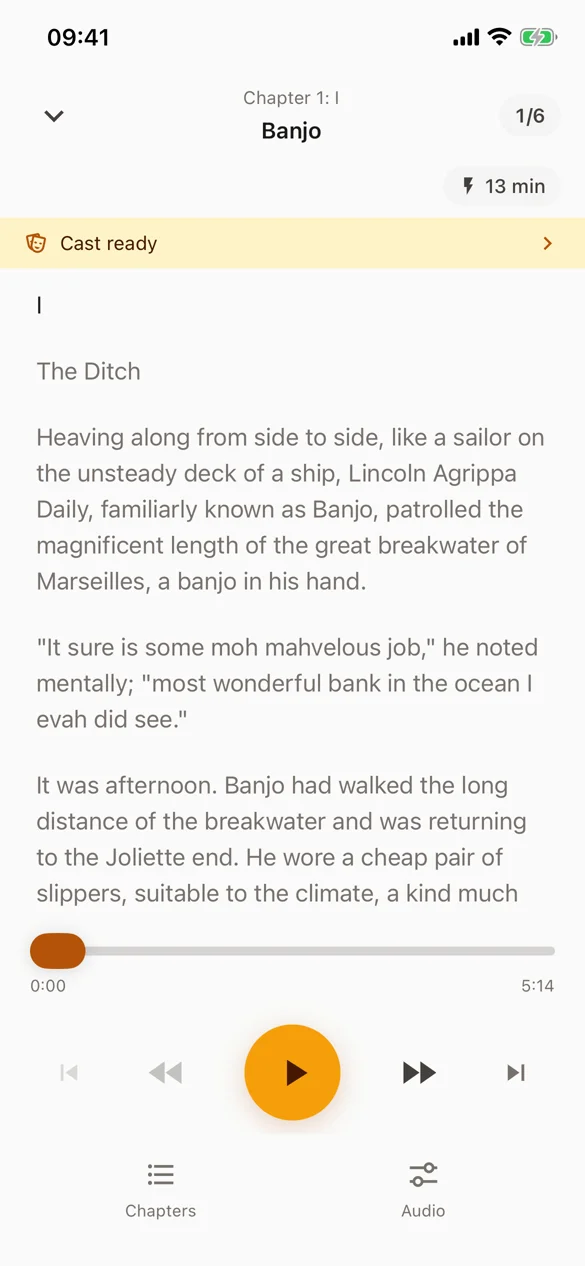
When the download finishes, the book opens in the reader with its cast ready. Tap play and it starts reading.
Tips:
- Catalog books are already produced in studio quality, so they never use credits. Listening uses a free daily time allowance that refills every day; watch a short ad for more, or go ad-free to remove the limit.
- Downloaded catalog books play offline.
- You can filter any category to just Full cast books with the chips under the search bar.
2. From Files App
If you already have eBook files on your device, import them straight from the file system.
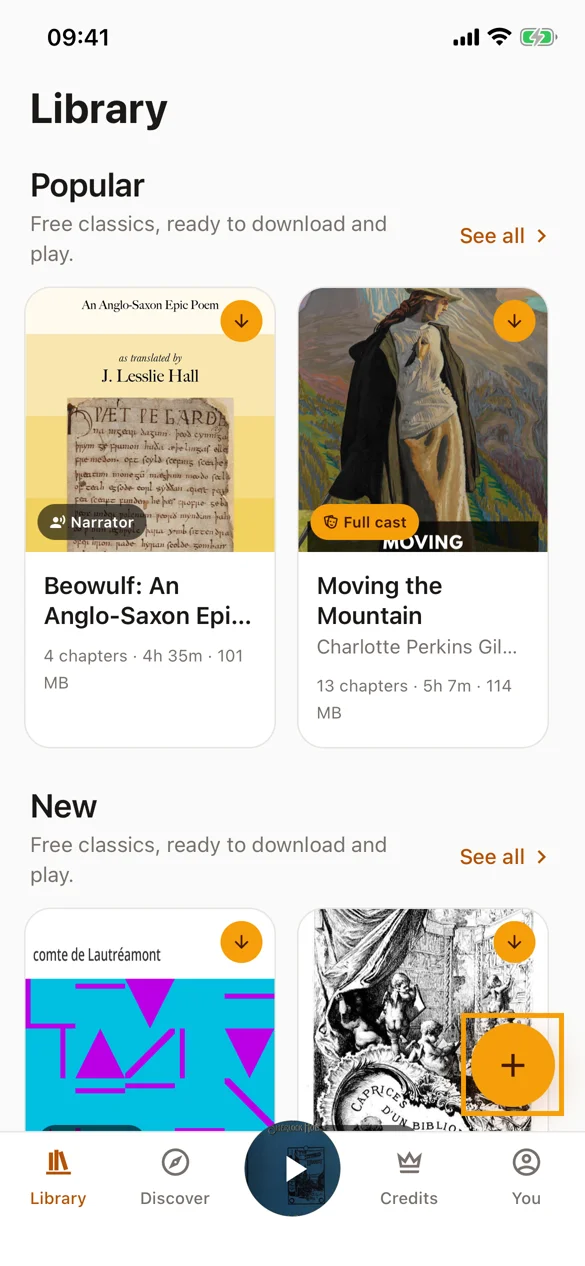
Step 1: Open the Import Menu
In your Library, tap the + button at the bottom right corner of the screen.
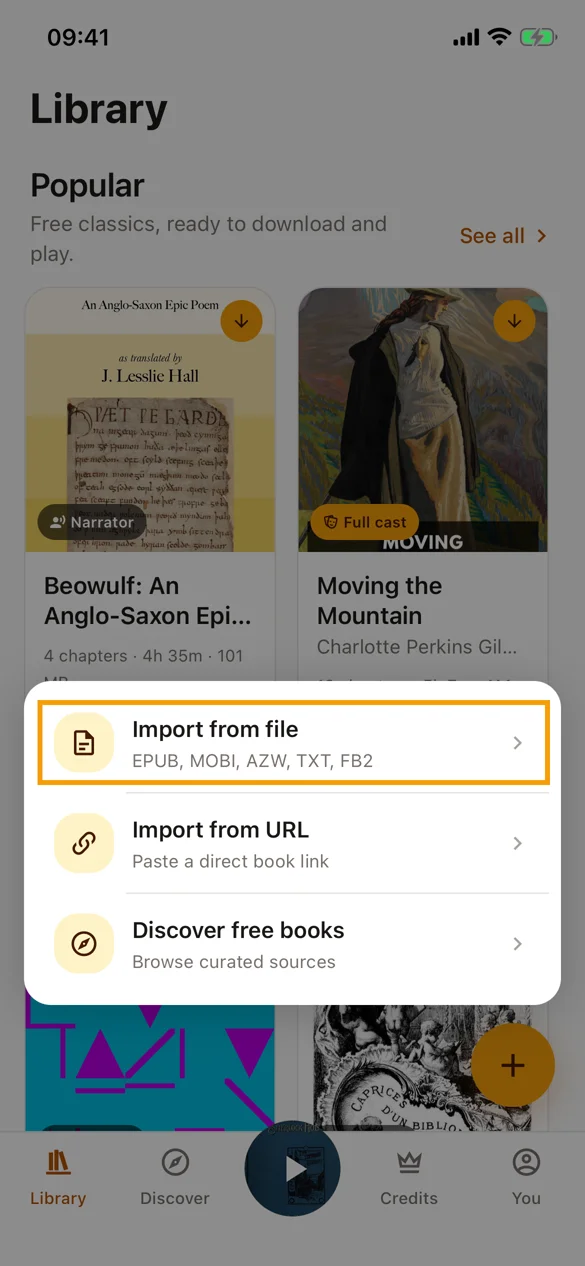
Step 2: Choose Import from File
Pick Import from file in the menu. If you have a direct download link to a book instead, use Import from URL and paste it.
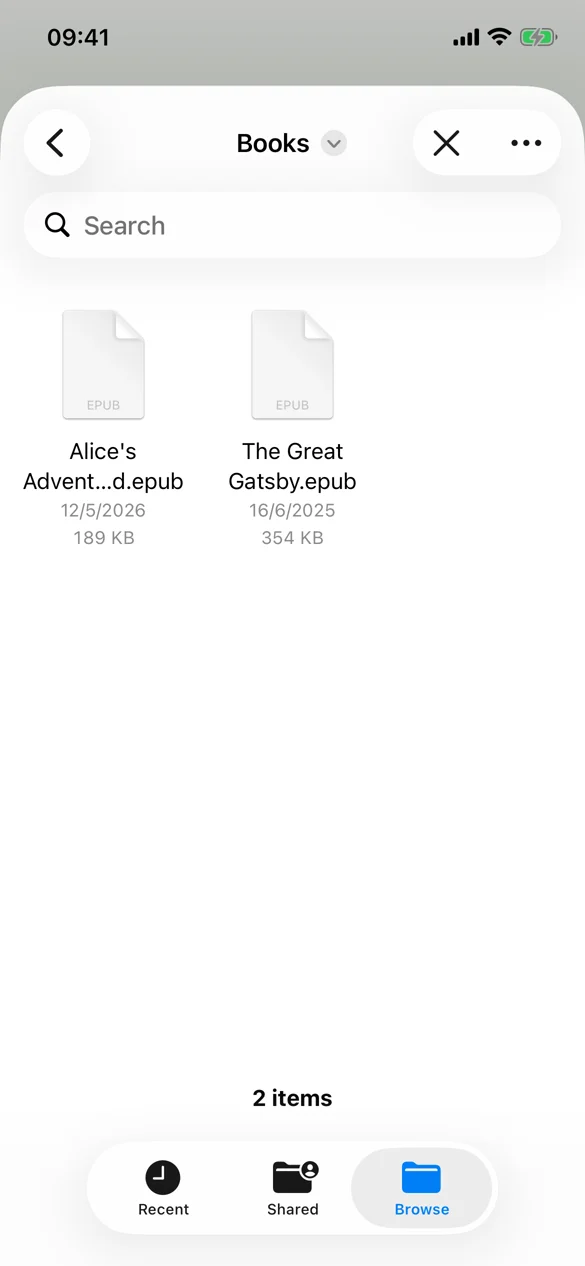
Step 3: Pick Your eBook
Your device's file picker opens. Browse to wherever the file is stored, common places include:
- Downloads folder
- iCloud Drive
- On My iPhone/iPad storage
Tap the eBook file you want to add. BookNPC supports .epub, .mobi, .azw, .azw3, .fb2, and .txt files.
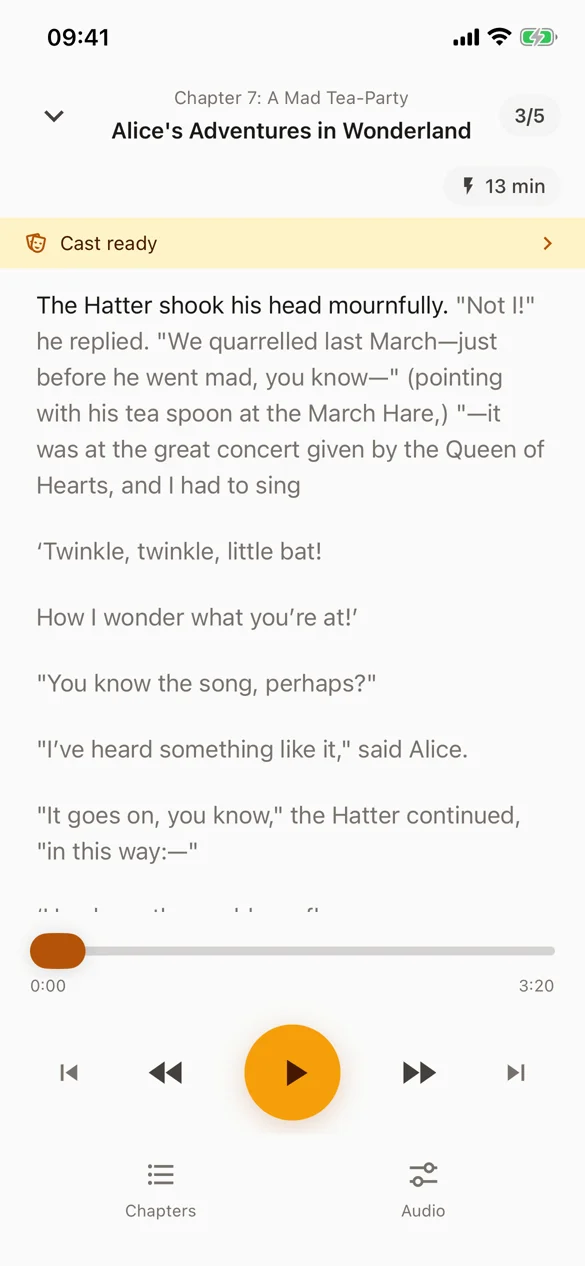
Step 4: Read and Listen
BookNPC imports the book and opens it in the reader. Play it right away with on-device voices, or cast it so every character gets their own voice.
Tips:
- BookNPC will only display files with supported extensions (.epub, .mobi, .azw, .azw3, .fb2, .txt)
- You can use the search function in the Files app to find eBook files if you're not sure where they are
- If you downloaded books using a different browser, check that browser's download folder
3. Share from Other Apps
You can add books to BookNPC directly from other apps using the iOS share feature. This works with any app that can download or open eBook files in supported formats, such as browsers, email clients, or cloud storage apps.
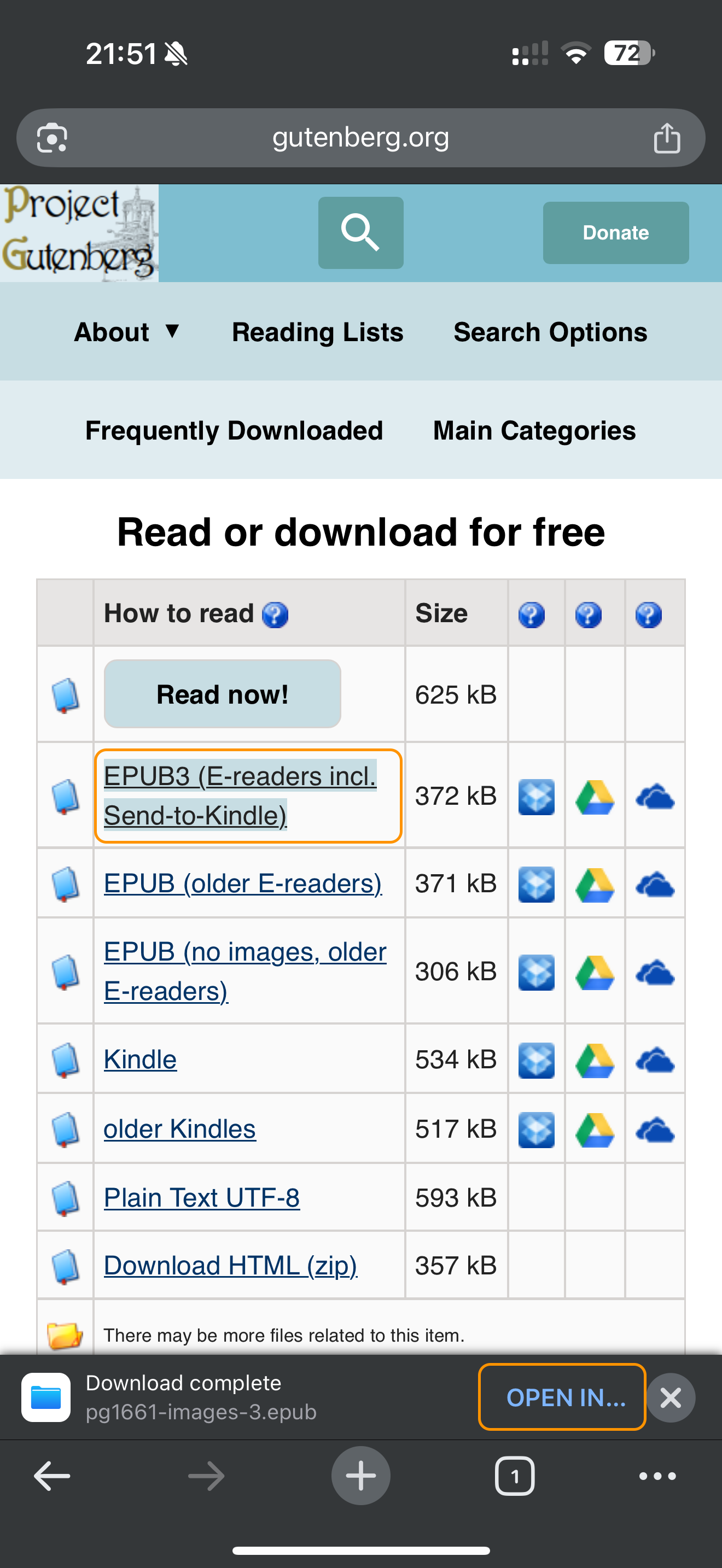
Step 1: Download or Open an eBook File in Another App
For example, when downloading an eBook file in Chrome, you'll see a "Download complete" notification with an "OPEN IN..." button. Tap this button to access sharing options.
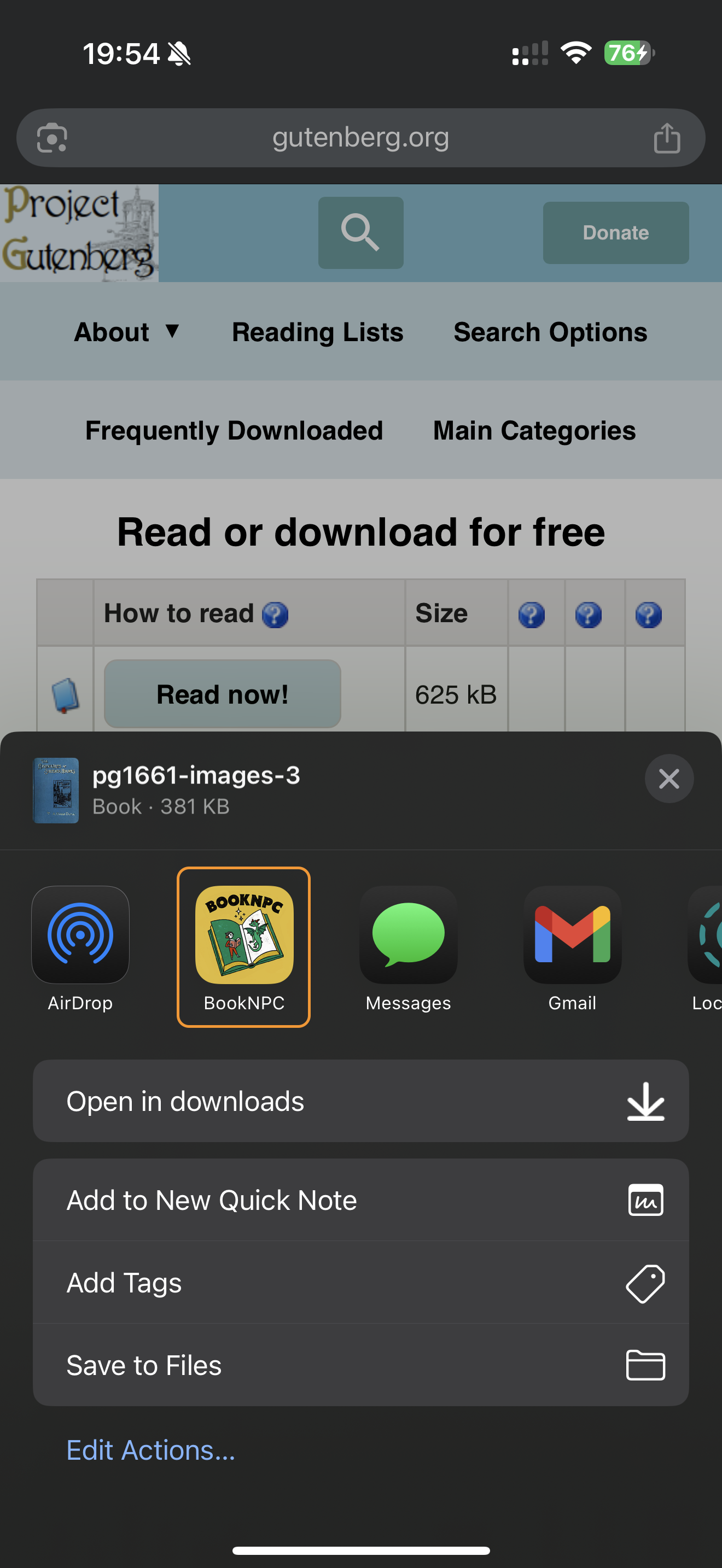
Step 2: Share to BookNPC
In the share menu, look for the BookNPC icon. If you can find it, simply tap it to add the book to your library.
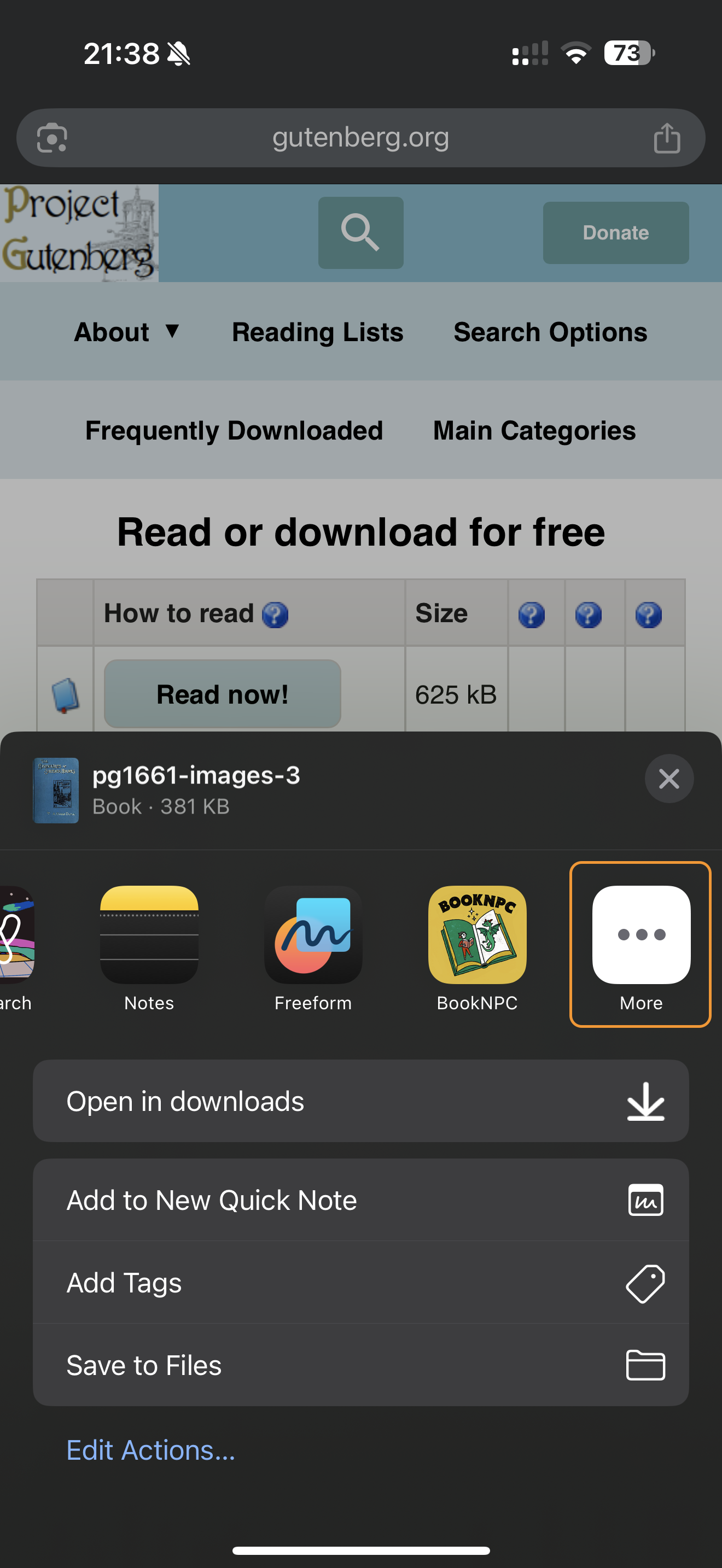
Step 3: If BookNPC Isn't Visible
If you don't see the BookNPC icon in the share menu, tap the "More" button (usually at the end of the app icons or with three dots).
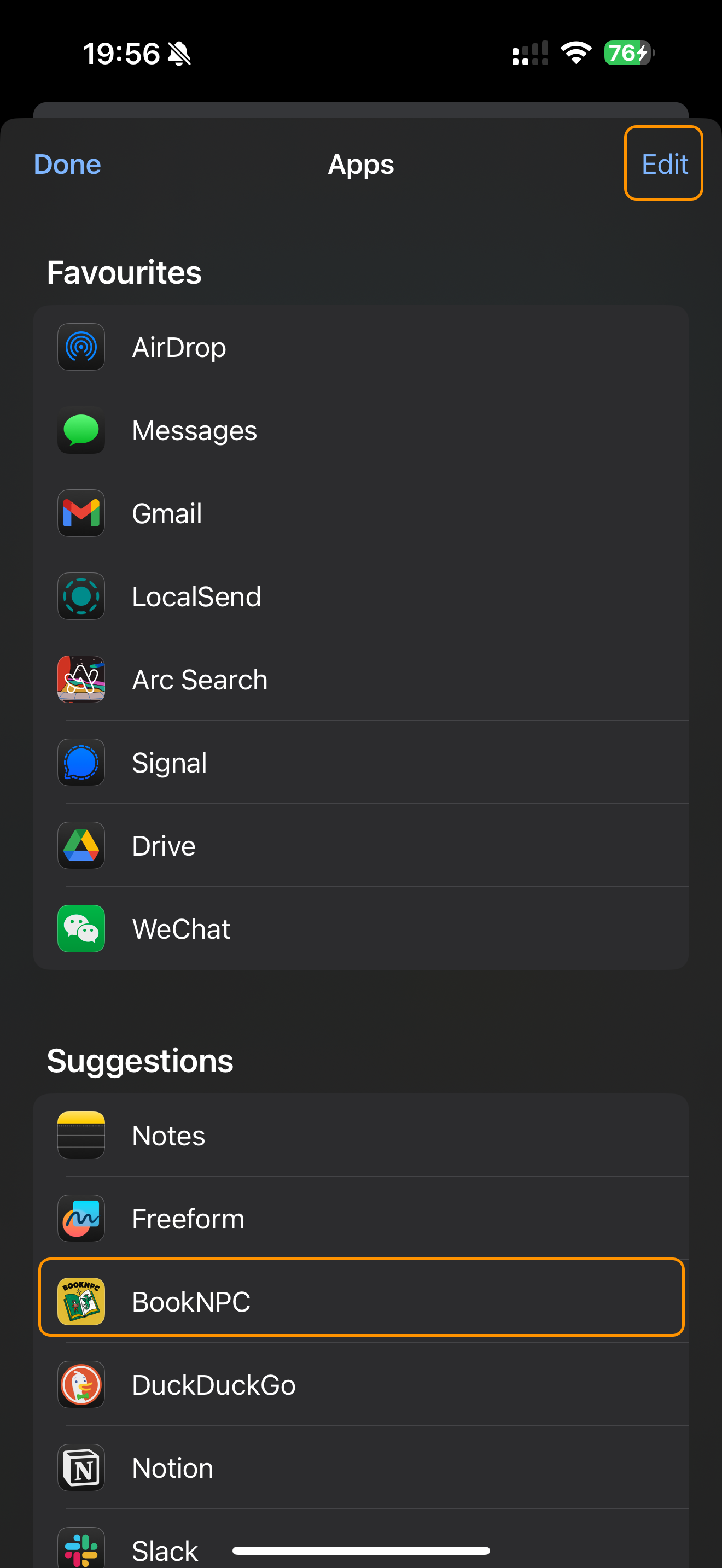
Step 4: Enable BookNPC in Share Menu
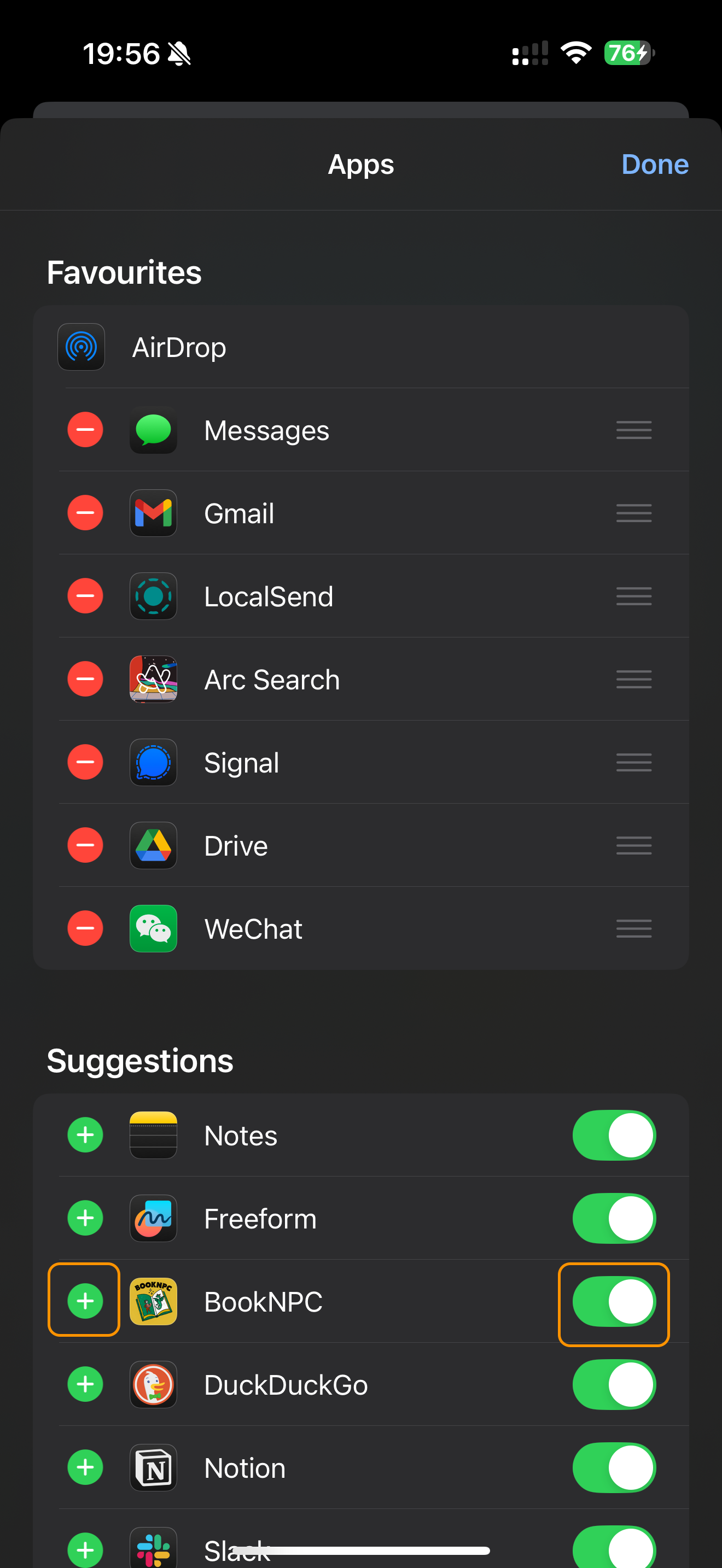
In the list of apps, find BookNPC and tap it to share your eBook file. For easier access in the future, tap "Edit" to customize your share menu.
Step 5: Add BookNPC to Favorites
When in edit mode:
- Make sure the toggle next to BookNPC is turned on (green)
- Tap the green plus icon (+) to add BookNPC to your Favorites list
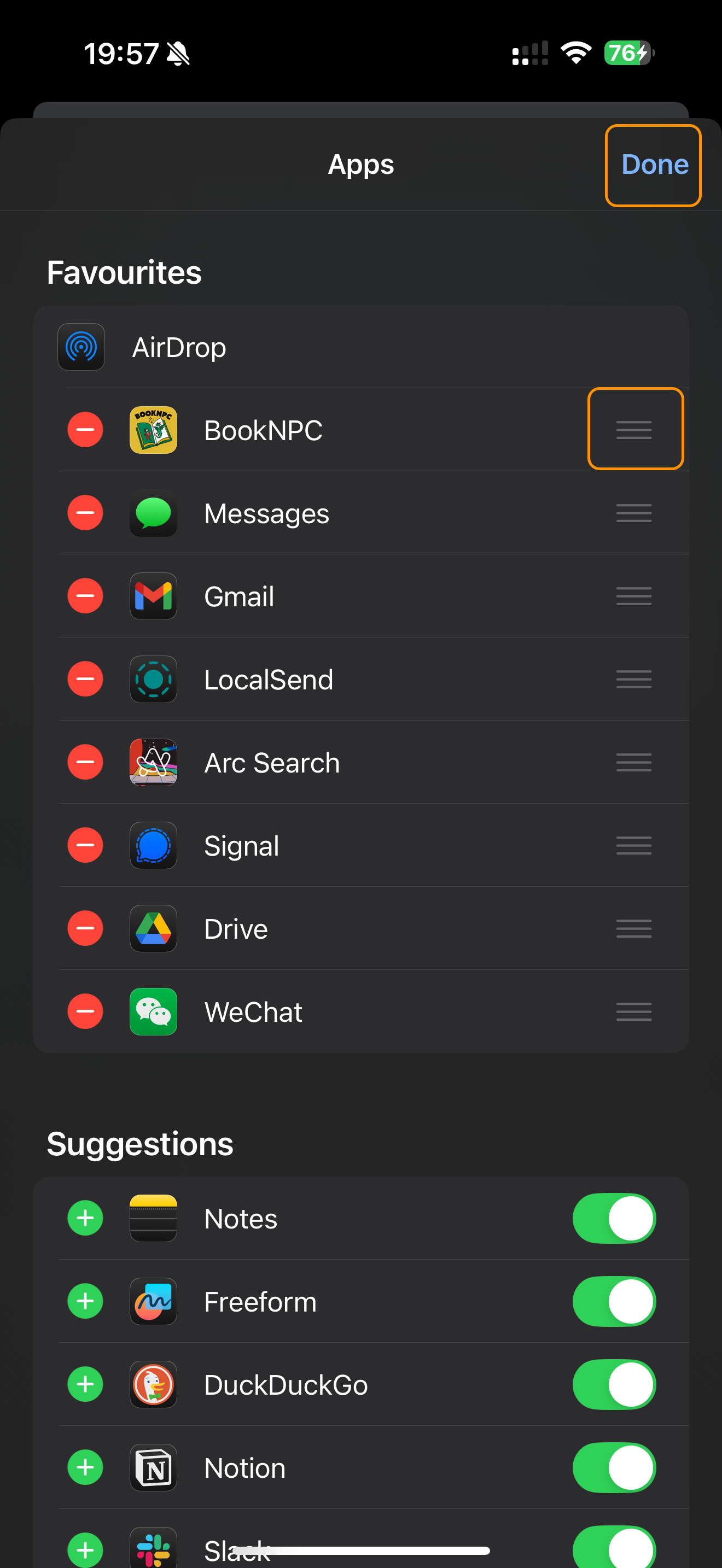
Step 6: Rearrange and Save Your Changes
Use the drag handles (three lines) to move BookNPC higher in your Favorites list for easier access. When finished, tap "Done" to save your changes.
Tips:
- Adding BookNPC to your Favorites in the share menu makes it easier to quickly add books in the future
- This method works with any app that can handle supported eBook formats (EPUB, MOBI, AZW, FB2, TXT), including Mail, Files, Safari, Chrome, etc.
- If the share option doesn't appear, try downloading the file first, then locate it in Files app and share from there